Google Maps
Modified on Tue, 14 Oct at 4:25 PM
If your website includes a Google Map — whether it's showing a single location or multiple pins — you can update and manage those map settings directly in the Editor. This article covers the tools shown in the video above and guides you through the most common scenarios.
Where Do Maps Appear?
Maps most commonly appear on:
A Contact page
A Locations page
But they can also be used on:
“Find a Dealer” tools
Real estate/property search pages
Community tour or event pages
Editing a Single-Location Map
If your site has just one address to display, the map will typically appear as its own block in the Editor.
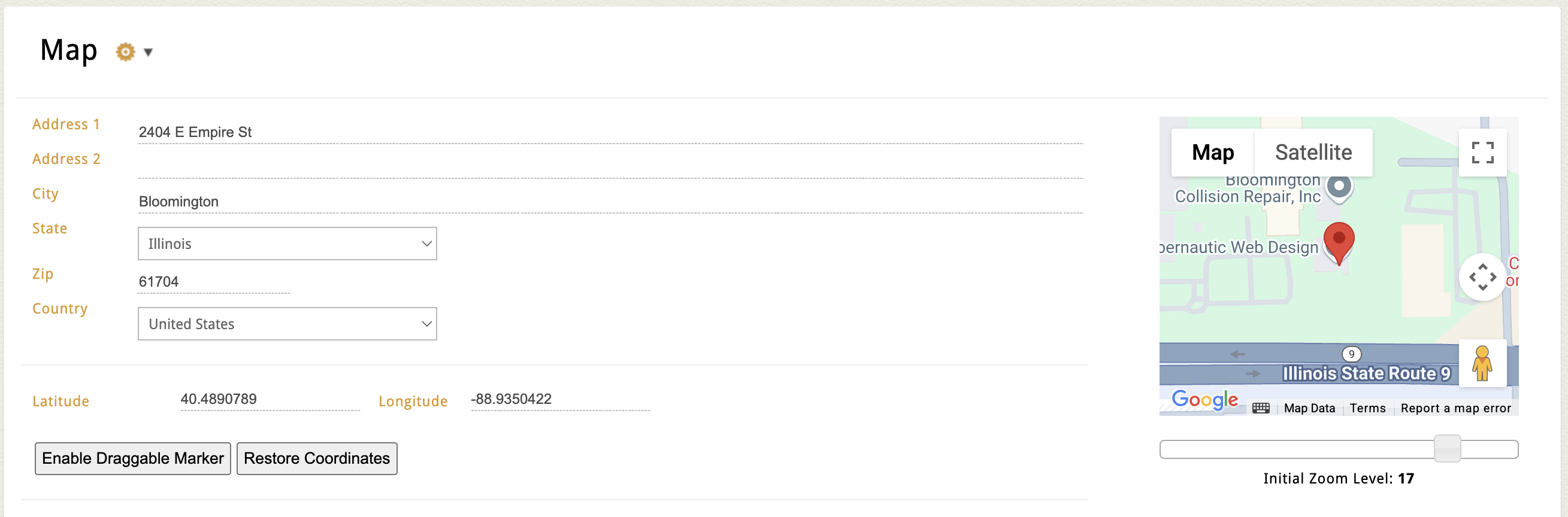
Here’s how to edit it:
Open the page that contains your map.
In the map block, you’ll see dedicated input fields for:
Address Line 1
Address Line 2 (optional)
City, State, Zip
Country
As you enter your address, you’ll see a live preview of the Google Map on the right side of the screen.
You can also:
Adjust the default zoom level (zoom in or out depending on how close you want the map to appear)
Enter latitude and longitude manually (optional — useful for fine-tuning pin placement)
Editing a Multi-Location Map
If your site displays several locations on a single map:
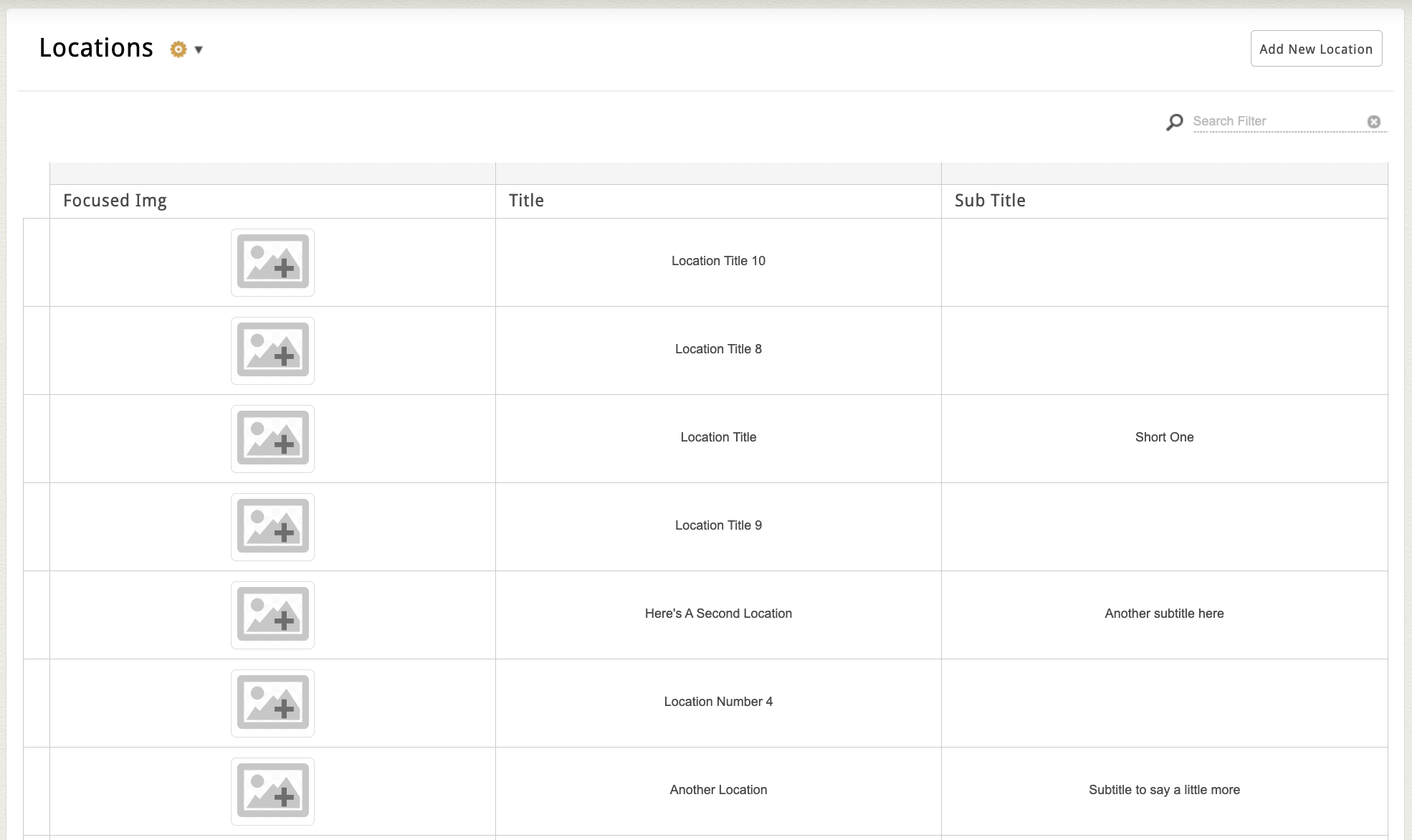
Look for a Locations-style page in the Editor.
You’ll typically see a list of location entries in a flex grid. Specific attribute fields for your locations may vary, but common ones include:
Location photo
Name of the location
Address details
Location description
Phone
Fax
Updating any of these entries will automatically update the pins on your map.
You may also have access to:
Sorting or filtering options (e.g. show only locations in a certain state)
Category dropdown to group locations together
A zoom level or center-point setting to control the default view
Want to Add Your Own Google Map?
If your page doesn’t already include a map — or you want to embed a separate map elsewhere on your site — you can do that too using the Embed Code tool in the Editor.
Option 1: Embed a Basic Google Map
This method is great for showing a single address or location.
Go to maps.google.com
Search for your address
Click the “Share” button, then select the “Embed a map” tab
Choose your preferred size and click “Copy HTML”
In your site Editor:
Place your cursor in the text area where you want the map
Click Insert > Embed Code in the toolbar
Paste in the iframe code and click the orange checkmark
See our knowledgebase article about embedding Third-Party script for additional help!
You can click on the embedded map at any time to open the editing window and make changes.
Option 2: Use Google MyMaps to Show a Service Area or Multiple Pins
If you want to draw shapes (like a delivery zone), add multiple pins, or color-code regions, Google’s MyMaps tool is your best option.
Visit Google MyMaps
Sign in with your Google account
Click Create a new map
Use the tools to:
Add pins for multiple locations
Draw shapes to outline your service area
Customize layers and colors
When you’re done:
Click Share and make the map public or “anyone with the link”
Open the (•••) menu and choose Embed on my site
Copy the iframe code and use Insert > Embed Code in the Dynamic Text Editor to drop it into your page
See our knowledgebase article about embedding Third-Party script for additional help!
Google’s official how-tos for MyMaps:
Quick Tips
Always double-check addresses for accuracy — especially when pins don’t land where expected
Use latitude/longitude for precision, or when a pin is slightly off
You can embed multiple maps on a page, but keep them spaced out to avoid clutter
If your map doesn't appear live right away, refresh the browser or check the sharing settings in Google
Was this article helpful?
That’s Great!
Thank you for your feedback
Sorry! We couldn't be helpful
Thank you for your feedback
Feedback sent
We appreciate your effort and will try to fix the article